How to format a dash cam SD card
Format a dash cam's microSD card in the camera's own menu or app every few weeks, since Windows or Mac formatting can use a file system the cam does not expect; a 128GB high endurance card like the VIOFO 128GB Industrial Grade at $72.99 should stay on that regular schedule to keep loop recording writing cleanly.
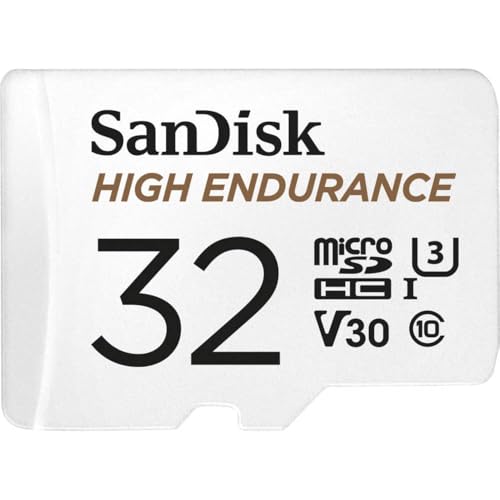
32GB / high endurance
The main piece of gear for this job. The rest of what you need is below.
Why does a dash cam need the card reformatted regularly?
Loop recording writes and overwrites the same physical storage on a card thousands of times over months of driving, far more write cycles than a typical microSD card handling photos or media files sees. Reformatting on a schedule clears out file system fragmentation and lets the camera rebuild a clean set of loop segment files, which reduces the odds of a dropped frame or corrupted clip.
Most manufacturers suggest formatting every couple of weeks to every month of regular use, and some cams will show a warning prompt in the app once write errors start showing up, which is a sign the card needs formatting or replacing.
How to format a dash cam SD card (step by step)
- Back up or lock any clips you want to keep before formatting, since formatting erases the entire card including locked footage.
- Power on the dash cam and open its settings menu, either on the camera's own screen or through its companion app connected over WiFi.
- Find the storage or SD card menu option and select Format or Format SD Card.
- Confirm the format when prompted; this should take under a minute for most card sizes.
- Let the cam finish writing its folder structure back onto the card before removing power, then confirm it is recording again by checking the live view or a fresh clip.
Can I format the card on my computer instead?
You can, but it is not the preferred method. A camera's own format function writes the specific folder structure and file system the cam's firmware expects, commonly FAT32 for cards up to 32GB and exFAT for larger cards. Formatting on a Windows or Mac computer sometimes picks a different allocation unit size or file system than the cam wants, which can cause the camera to reject the card or record inconsistently.
If you do need to format on a computer, for example to recover a card the cam refuses to read, match the file system to the card's size, FAT32 under 32GB and exFAT for 64GB and up, and then let the cam do a second format of its own once the card is back in the camera.
What are the signs a card needs formatting or replacing?
A card showing these signs occasionally just needs a fresh format, but a card showing them repeatedly, especially right after formatting, has likely reached the end of its write-cycle life and should be replaced with a new high endurance card rather than a standard consumer microSD card.
- The cam's app shows a card error, write error, or format card warning
- Clips are missing chunks of time or will not play back cleanly
- The cam takes longer than usual to power on or start recording
- Loop recording stops earlier than expected for the card's rated capacity
How is a high endurance card different from a regular microSD card?
A high endurance microSD card, like the Sandisk High Endurance line or the VIOFO Industrial Grade cards, is built with flash memory rated for continuous read-write cycling, which is exactly what loop recording does all day, every day. A regular consumer card, built for a phone or camera that mostly reads existing files and writes new ones occasionally, wears out faster under a dash cam's workload and is more likely to develop the write errors that show up as corrupted or missing clips.
Does card capacity change how often I should format?
A larger card, like the VIOFO 512GB Industrial Grade at $229.99, takes longer to fill and loop through, which sometimes means longer stretches between the write patterns that lead to fragmentation and errors compared to a smaller card cycling through its full capacity faster. In practice, most owners find it simpler to format on a fixed schedule, every couple of weeks to once a month, rather than trying to calculate a different interval for each card size.
What does matter with card size is making sure the specific card is actually rated for continuous dash cam recording. A high endurance card is built and tested for exactly this workload; a large-capacity card meant for photo or media storage can hold plenty of data but may not hold up as well to the constant overwrite cycles loop recording puts on it.
High endurance cards worth formatting into rotation
Prices change often.

 VIOFO 128GB Industrial Grade High Endurance microSDXC Card for Dash Cam128GB / high endurance$72.99Check price on Amazon
 VIOFO 512GB Industrial Grade High Endurance microSD Card for Dash Cam512GB / high endurance$229.99Check price on Amazon
Frequently asked questions
How often should I format my dash cam's SD card?
Most makers suggest every couple of weeks to once a month for daily drivers, and sooner if the app shows any write error or the card starts producing corrupted clips. Formatting through the cam's own menu is quick, usually under a minute, so there is little downside to doing it more often than less.
Will formatting delete locked or important clips?
Yes. Formatting wipes the entire card, including the separate folder where locked or protected clips are stored. Copy anything you need to a computer, phone, or cloud storage before formatting, since there is no way to recover footage once the card has been formatted.
Why does my dash cam say card error after I plug in a brand new card?
New cards sometimes ship formatted with a file system or allocation size the cam's firmware does not expect, especially cards not sold specifically for dash cam use. Format the new card once inside the camera's own menu before you rely on it, which lets the cam write its own compatible folder structure.
Can I use exFAT or does the dash cam need FAT32?
It depends on card size: most cams use FAT32 for cards up to 32GB and switch to exFAT for 64GB and larger cards, since FAT32 cannot address files or partitions above roughly 32GB cleanly. The camera's own format function picks the right one automatically, which is another reason to format inside the cam rather than on a computer.
How do I know if a card has worn out instead of just needing a format?
If formatting through the cam's menu does not clear up the write errors, missing clips, or slow startup, and the same problems return within a day or two of normal driving, the card has likely reached the end of its usable write cycles. At that point replacing it with a new high endurance card is the fix, not another format.
Does a bigger capacity card need to be formatted differently than a smaller one?
The format process itself is the same regardless of size, but larger cards, 64GB and up, use the exFAT file system while smaller cards under 32GB typically use FAT32. The camera's own format function selects the correct one automatically for the card's size, which is another reason to format inside the cam rather than manually choosing a file system on a computer.